Start with the CPS PCCOOLER SR700 if you need room for two long ATX power supplies. Pick the Phanteks Enthoo Elite Server if you need 12 expansion slots. SR700 specs · Elite Server specs
Compare dual-PSU full towers
| Full tower | Power supply mounts | Expansion slots | When to shortlist it |
|---|---|---|---|
| CPS PCCOOLER SR700 | Two ATX bays for units up to 300 mm long | 11 | Your build uses an HPTX or SSI-EEB board, or you need the published length allowance for long ATX supplies. |
| Phanteks Enthoo Elite Server | Dual PSU support for high-power or redundant configurations | 12 | You need more expansion slots for GPUs or other add-in cards and want SSI-EEB support. |
Check both PSUs and every GPU before buying
- Check the PSU bodies. Write down the form factor and body length of each intended supply. For each candidate case, confirm that each supply has a bay that accepts its form factor and length. For the SR700, both supplies must be ATX and no more than 300 mm long to meet the published bay limits. SR700 specs
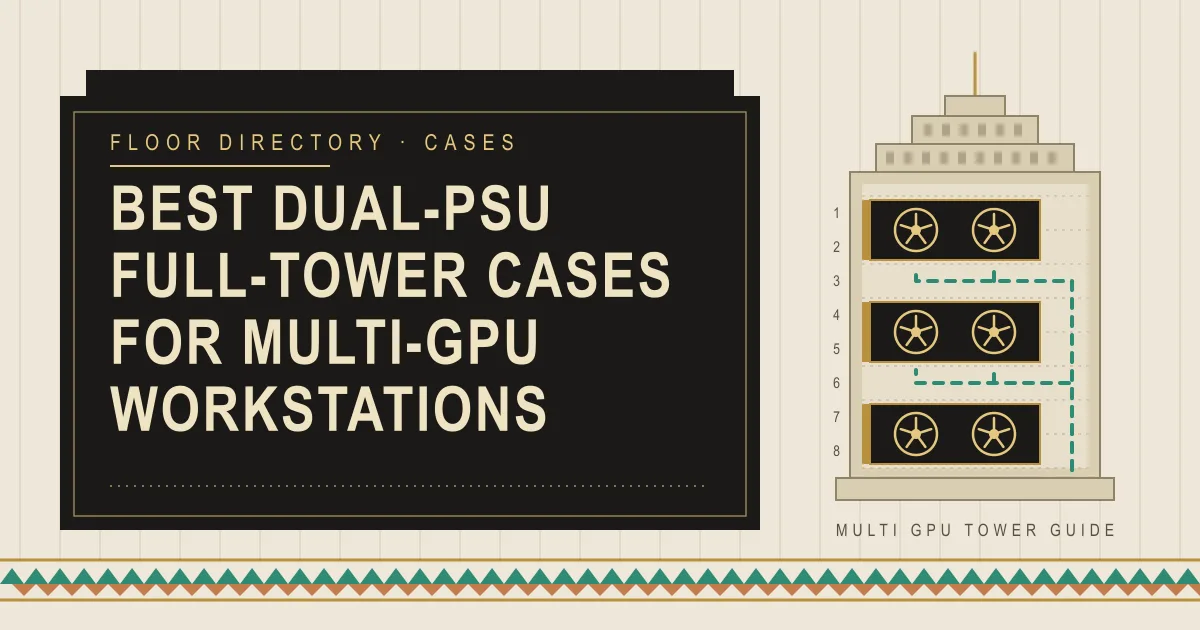
- Map the rear slots to motherboard connectors. Draw the rear positions and mark each card at the connector you plan to use. In a packed rear-slot layout, four dual-slot cards occupy eight positions: 1–2, 3–4, 5–6 and 7–8. Check for usable motherboard connectors at positions 1, 3, 5 and 7 before counting that layout as a fit. NVIDIA’s dual-slot card example · ASUS motherboard layout
- Check card length and the cooling layout. For each candidate case, mark the positions of the fans and radiators you intend to use. Compare the length of your longest card with the clearance in that layout to confirm it fits. For example, the SR700 lists a 360 mm radiator position at the front and two 480 mm positions at the top. Phanteks GPU fit guidance · SR700 radiator positions
Plan power for one workstation
Find the documented way to run both supplies. ASUS describes a dual-PSU design for overclocking on its Pro WS WRX90E-SAGE SE motherboard. ASUS dual-PSU design Before relying on the combined capacity of both supplies, confirm that the motherboard or power system maker documents support for both in your exact workstation configuration.
Start with GPU watts, then budget the rest. NVIDIA lists 600 W maximum power for the RTX PRO 6000 Blackwell Workstation Edition. Four cards at that published maximum total 2,400 W for the GPUs alone. Add the CPU, memory, drives and cooling to your budget, then allow headroom for power spikes. NVIDIA specifications · Corsair sizing guidance
Check modular cable compatibility. Check that the modular cables are compatible with the exact PSU model. Corsair warns against moving modular cables between PSU brands. Corsair cable guidance
Check the AC input. Record the documented AC input voltage and current for both supplies. Confirm that the planned circuit or circuits can meet both supplies’ requirements. If one supply covers the build, check its AC input too. The Corsair WS3000 is rated for 3,000 W continuous output and requires 220–240 V AC only, with a specified input current of 16 A. In 110/120 V regions, Corsair directs buyers to a qualified electrician for an appropriate circuit. Corsair WS3000 input requirements
Evidence and limits. The manufacturers’ specifications and documentation for the listed chassis, motherboard, GPU and power supplies were checked on November 26, 2026. This guide is not based on hands-on testing.


